Managing iOS Supervision Identities
Supervision identities are certificates added to iOS devices during enrollment in Apple's Device Enrollment Program (DEP). They help ensure only trusted computers can connect to and manage these iOS devices, making them more secure in business environments.
|
|
|

Accessing Supervision Identity Settings
To access the Supervision Identities,
- Select the Settings tab in top navigation.
- Select Apple Settings > DEP Profiles.
- Select a DEP profile to open the profile details.
- Select Supervision Identities section.
- Here you can perform the following actions:
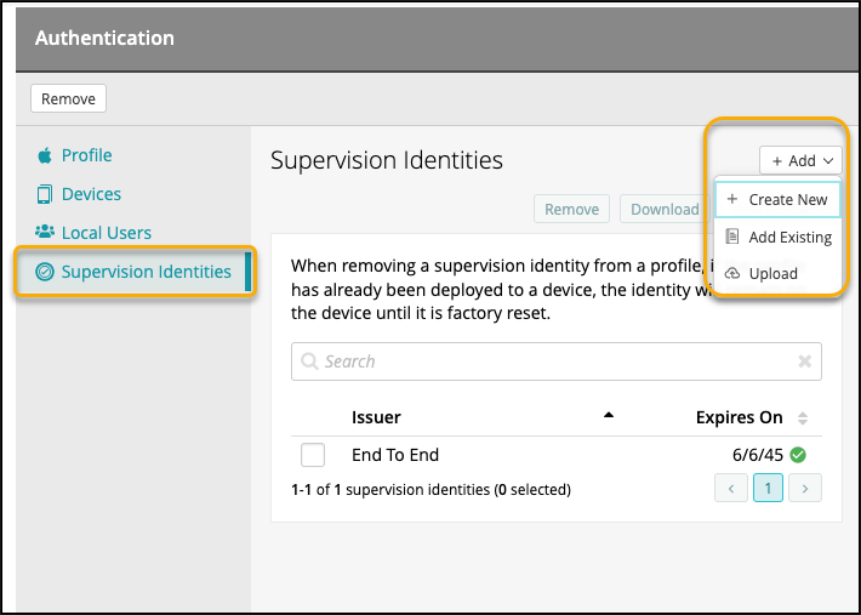
- Click Add to add Supervision Identity. You can add it in three ways,
- Create new - creating a new certificate directly from the profile.
- Add Existing - adding existing certificate from Library
- Upload - upload the certificate.

- Click Remove From DEP Profile – to remove the Supervision Identity from the profile.
- Click Download – to download the certificate.
- Click View Password – to view the password of the certificate.
Adding a New Supervision Identity
You can add a supervision identity using any of the following methods:
- Creating a new Supervision Identity:
- Select the Settings tab in top navigation.
- Select Apple Settings > DEP Profiles.
- Select a DEP profile to open the profile details.
- Select Supervision Identities section.
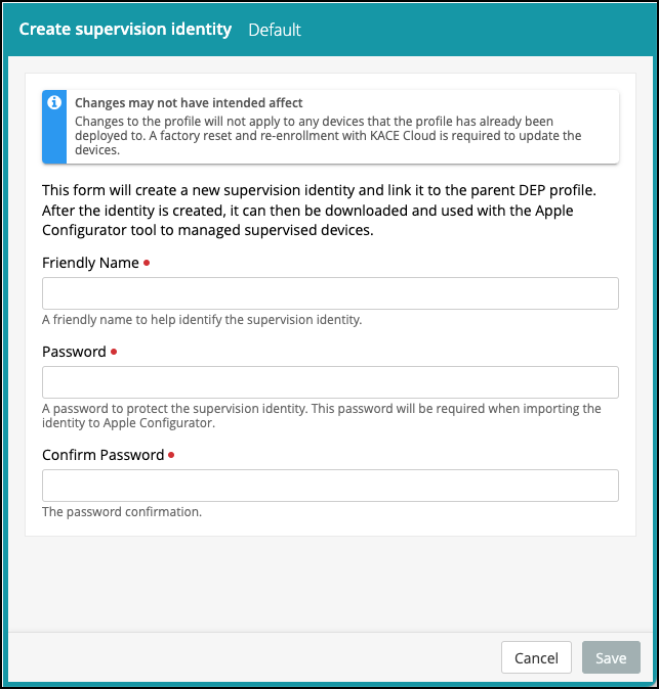
- Click Add and then click the Create New option.
- Provide a Friendly Name (must be 5–32 alphanumeric characters with single spaces allowed).
- Enter and confirm a Password for the certificate file.
- Click Save.

- Adding Supervision Identity from Library
- Select the Settings tab in top navigation.
- Select Apple Settings > DEP Profiles.
- Select a DEP profile to open the profile details.
- Select Supervision Identities section.
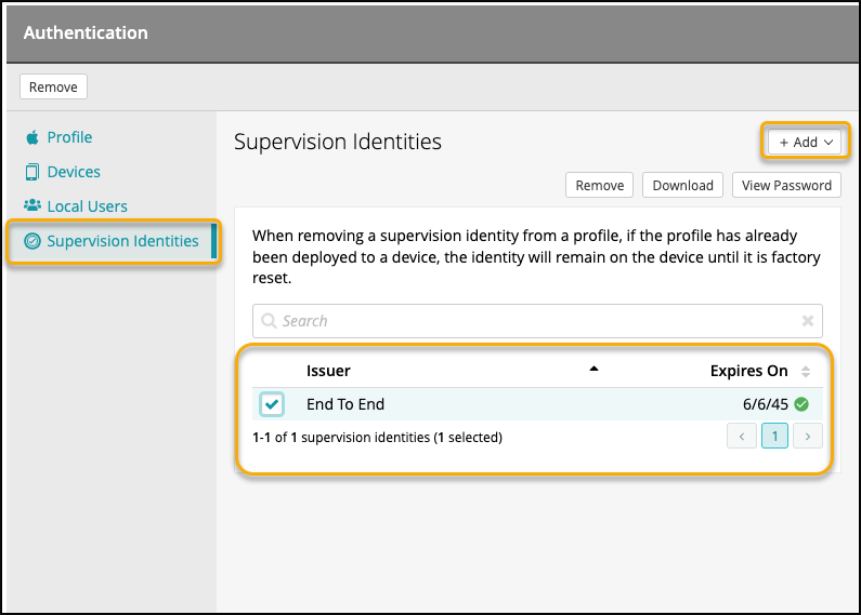
- Click Add and then click the Add Existing option.
- From the Certificate Library, select one of the existing certificates that can be used as a supervision identity.
- Click Add.
-
Uploading a Certificate
- Select the Settings tab in top navigation.
- Select Apple Settings > DEP Profiles.
- Select a DEP profile to open the profile details.
- Select Supervision Identities section.
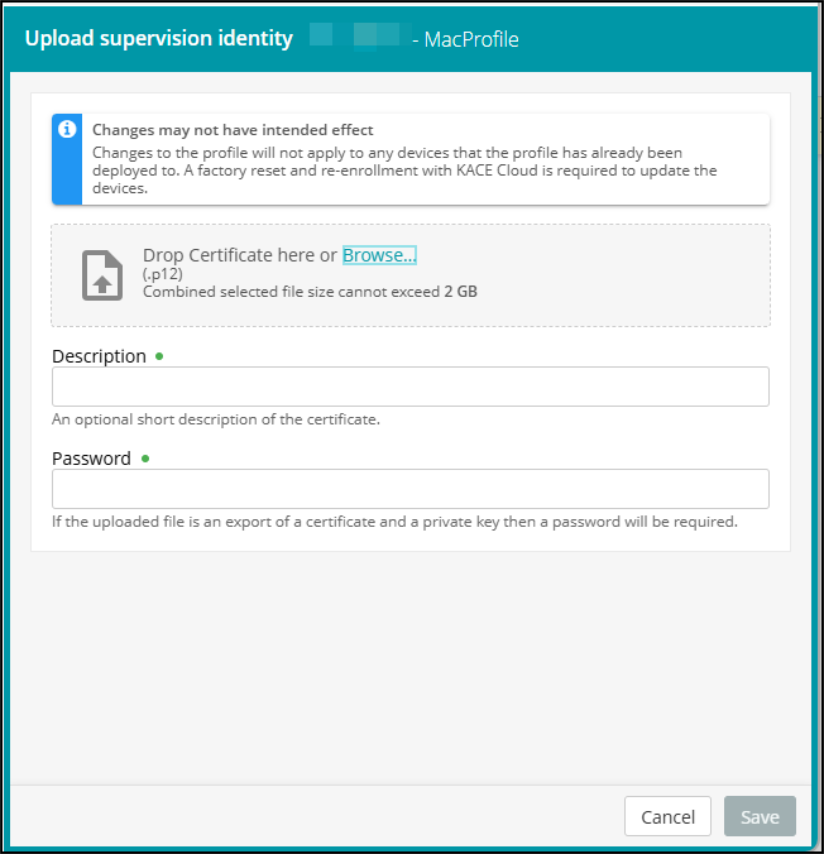
- Click the Upload option.
- Browse and select the exported .p12 certificate file.
The file size cannot exceed 2 GB. - In the Description field, add a short description.
- In the Password field, enter the password used during certificate export.
- Click Save.
Connecting a Supervised iOS Device to Apple Configurator
When connecting a supervised iOS device to Apple Configurator, the application checks for a matching supervision identity in its key chain. The behavior depends on whether the supervision identity is present or not.
- If the Supervision Identity is present
The device appears in Apple Configurator and can be managed without interruption. - If the Supervision Identity is not present
The Apple Configurator displays a warning message indicating that the identity is missing.To resolve this issue, follow the steps to import the correct supervision identity into Apple Configurator:
- Open Apple Configurator.
- From the menu bar, select Settings > Organizations.
- Click the + button to add a new Organization.
- On the Sign in screen, click Skip.
- Enter the Organization details as needed.
- When prompted, choose Use an existing Supervision Identity, select the appropriate identity from the key chain .
Once the identity is imported, the supervised device will appear in Apple Configurator and can be reset or modified as required.